Help Center
How to Reset Problems, Assignments, Videos, and Lessons
You can reset individual problems, an entire assignment, a video, or a full lesson from your Parent Account.
Important: An assignment must be submitted for grading before any part can be reset. If the assignment shows as In Progress in your student reports, your student will need to sign in to their Student Account and submit the assignment before you can reset individual problems or the entire assignment.
Step 1: Open Your Student’s Reports
- Sign in to your Parent Account.
- On your student's card, click View Progress.
- Select Reports.
- Scroll to the lesson containing the work you would like to reset.
- Click the arrow beside the lesson to expand it.
Step 2: Choose What You Would Like to Reset
Option 1: Reset an Individual Problem
- Find the assignment containing the problem and click View Details.
- Locate the problem you want to reset.
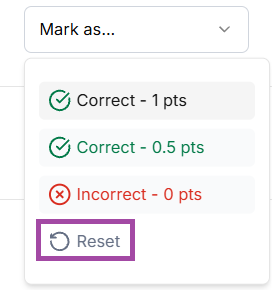
- Open the dropdown menu beside the problem and select Reset.
- Repeat for any additional problems you want to reset.
- Click Save Changes at the bottom of the report, then Confirm & Save.
Option 2: Reset an Entire Assignment
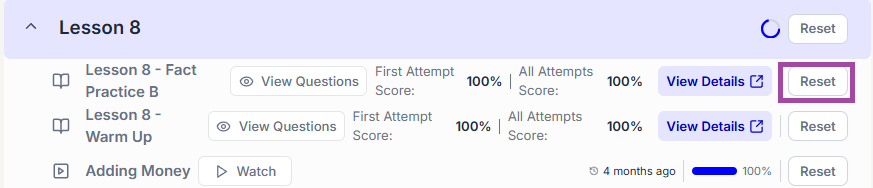
- Locate the assignment in the expanded lesson.
- Click Reset on the same row as the assignment.
- Click Reset again to confirm.
Option 3: Reset a Video
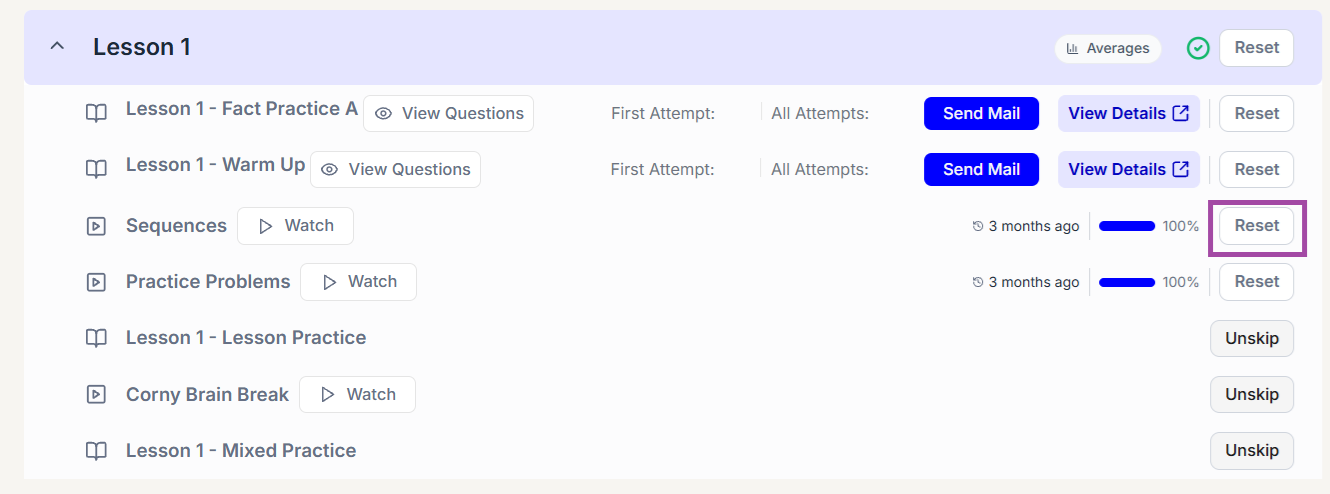
- Locate the video in the expanded lesson.
- Click Reset on the same row as the video.
- Confirm the reset when prompted.
Option 4: Reset an Entire Lesson
To reset all videos and assignments within a lesson:
- Find the lesson header at the top of the expanded lesson.
- Click Reset in the lesson header, not beside an individual assignment or video.
- Confirm the reset when prompted.

Step 3: Have Your Student Return to Their Work
After the reset is complete, your student can sign in to their Student Account and complete the reset work again.
Need help? Contact us at info@nicolethemathlady.com. We're here to help!
Last updated:
Was this helpful?
Let us know if this answered your question.